Your VPN, step by step.
Install NetBird, sign in with your invited work email, and connect through MYVAS-US. Follow these five steps to get started.
Screenshots: macOS · NetBird 0.80.0 · 2 October 2026. Windows follows a similar setup, but some windows and buttons look different. Newer app versions may also look different.
Download NetBird
Choose the official installer for your operating system, then open the downloaded file. On a Mac, find your processor in Apple menu → About This Mac.
The installed app is NetBird. Your VPN service is managed by MYVAS. These links go directly to the official distribution service.
You can also find installers in Download & Connect after signing in.
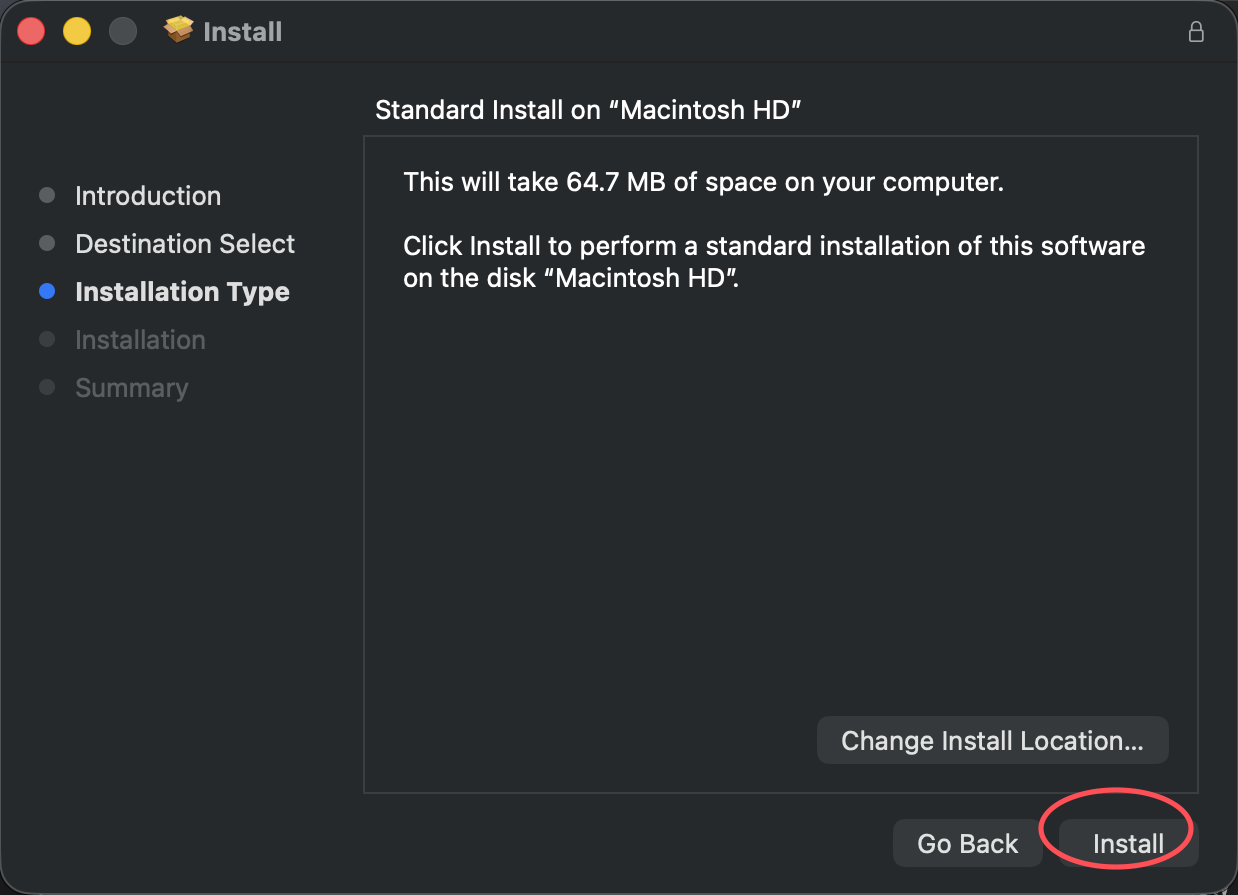
Install NetBird
Open the downloaded package and click Continue on the welcome screen. Then click Install.
You may be asked to enter an administrator password during installation. On Windows, approve the official installer’s administrator prompt.
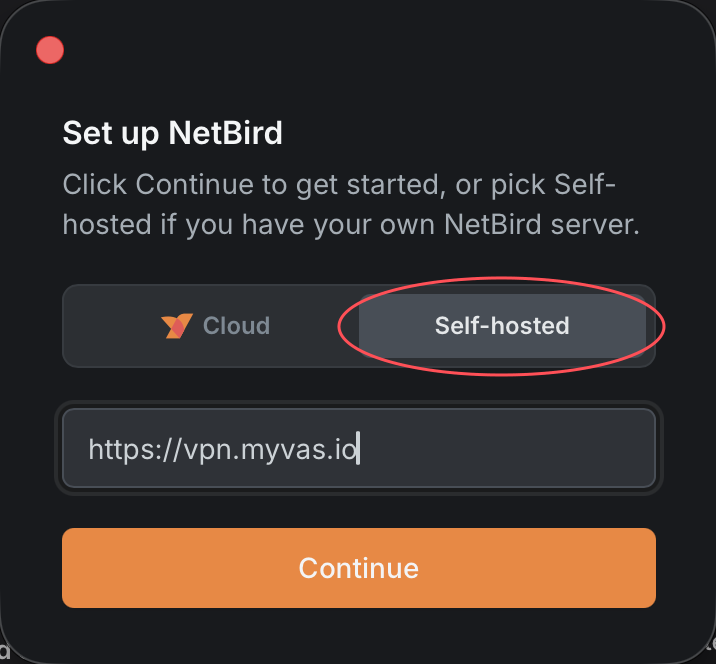
Set the server and connect
Open NetBird from Applications on Mac or the Start menu on Windows. Continue past the introduction.
Choose Self-hosted, enter the server address below, then click Continue.
https://vpn.myvas.ioUse this address exactly as shown, without /connect or /setup-guide.
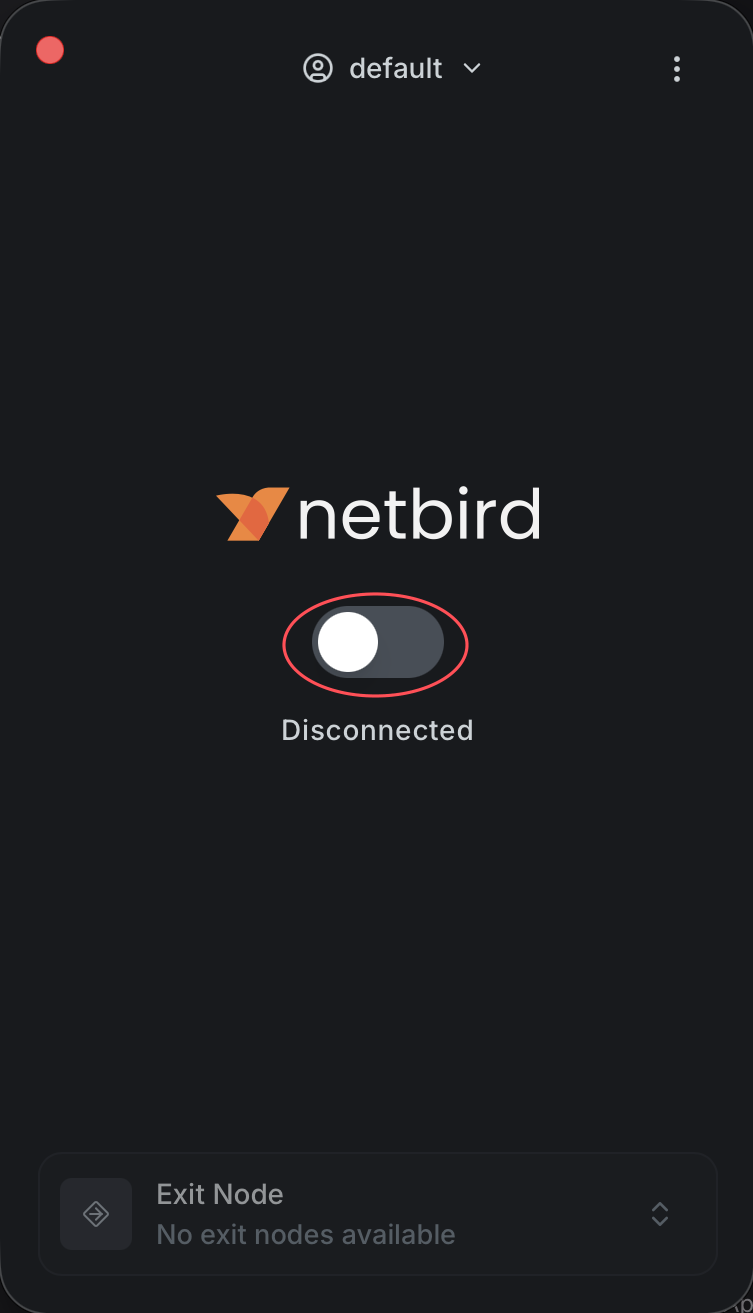
Sign in to your device
This step is required even if you already signed in to the MYVAS website.
Choose Continue with MYVAS Email Login. If prompted, use your invited email and open the sign-in link in the same browser. An existing MYVAS session may sign you in automatically.
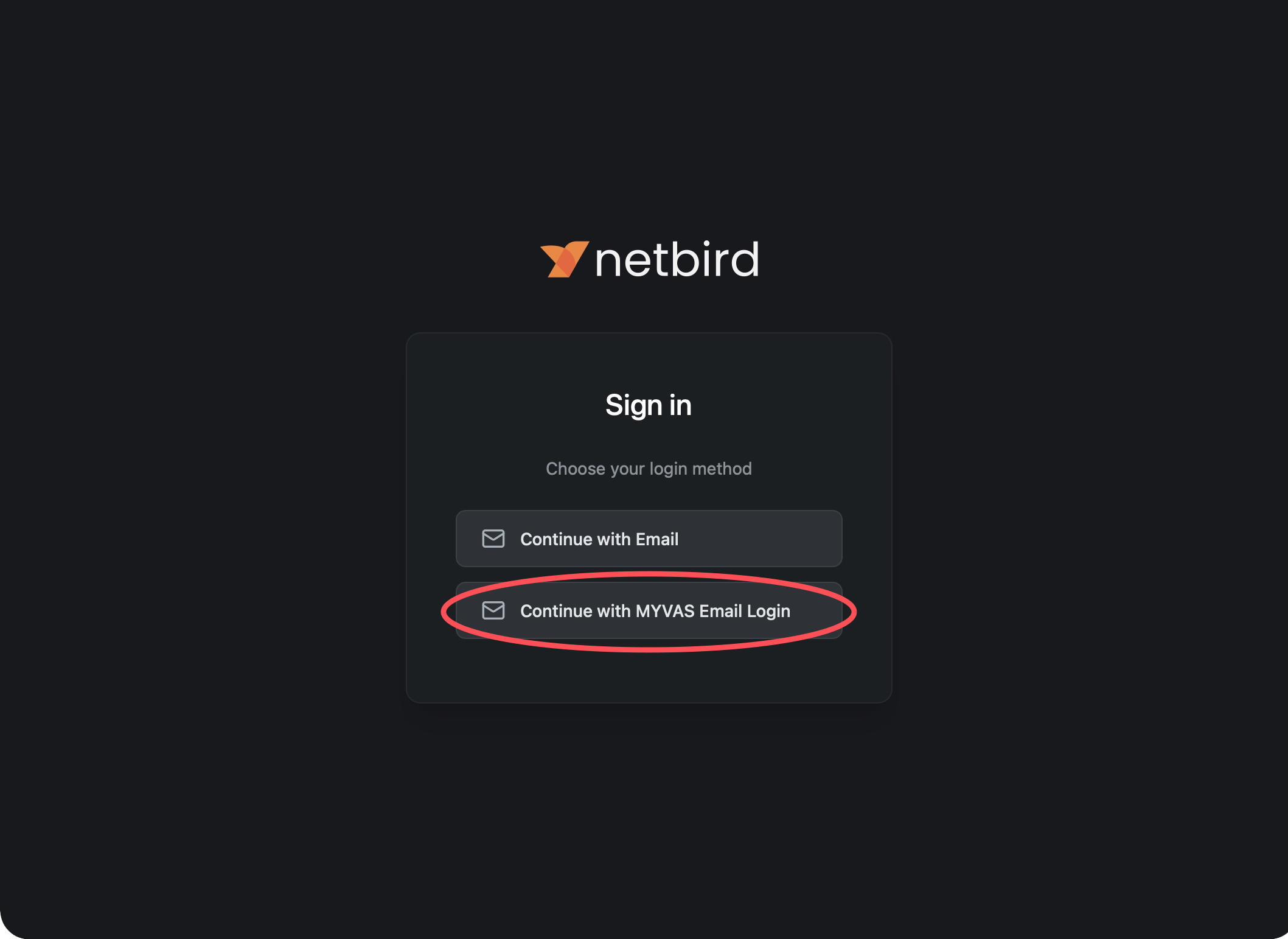
Administrators are also prompted for their authenticator code, with QR setup on first sign-in. Wait for Login Successful, then return to NetBird.
Verify MYVAS-US is active
Confirm Connected. Open the selector at the bottom and choose MYVAS-US if needed. The final status should read MYVAS-US Active.
Check this after every connection. The exit node may need to be selected manually.
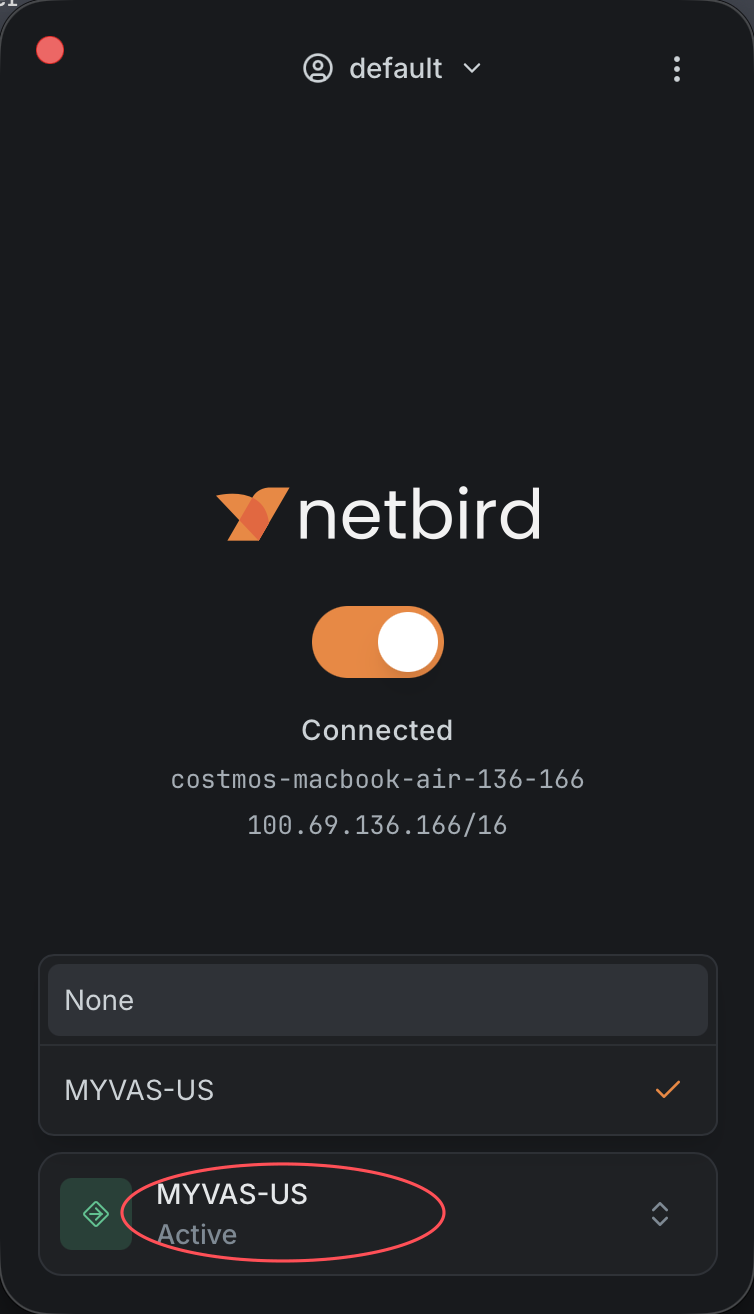
You’re ready. To stop the VPN, turn off the connection switch. Disconnecting restores ordinary internet access.
Need a hand?
If MYVAS-US is missing, websites do not load, or your sign-in email never arrives, contact your MYVAS administrator. Your email must be added before you can sign in.
For connection troubleshooting, including the Mac routing compatibility setting, open Download & Connect after signing in.
Sign in to MYVAS